In this case, the Rough DHCP server in the LAN can be found through a simple configuration. In most cases there is only single DHCP server in the LAN without redundancy. However, under several conditions, there will be Rough DHCP servers in the LAN.
- Client-User installed wireless router by their-self
- Virtual network configuration error
Multiple DHCP servers also cause a DHCP broadcast storm and let network down. We can through several simple settings of routerOS to find it.
1. Login to Routeros with Winbox, go to IP->DHCP SERVER->DHCP Alert, click the "+" in the upper-left corner to add an alert.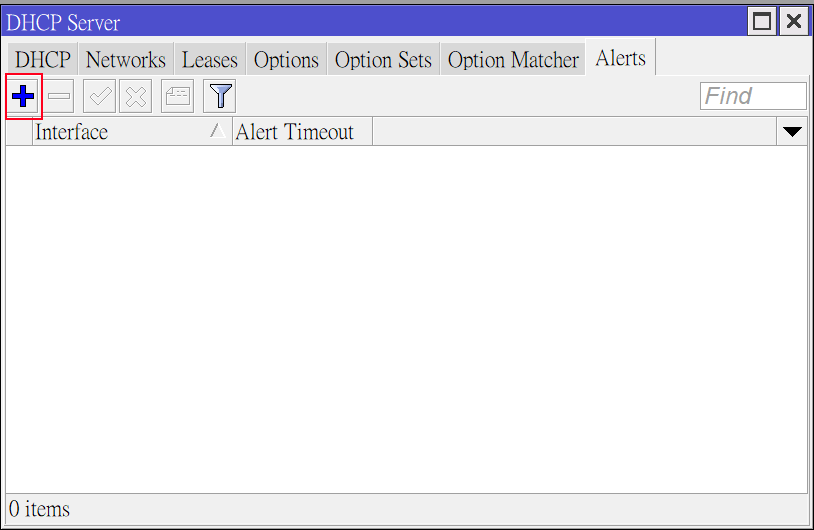
2. DHCP server of RouterOS is on the default Bridge interface, so in the [Vaild Server] field, paste the MAC address of the Bridge interface. [On Alert] is a more advanced script that can be defined, which will be enhanced and supplemented later.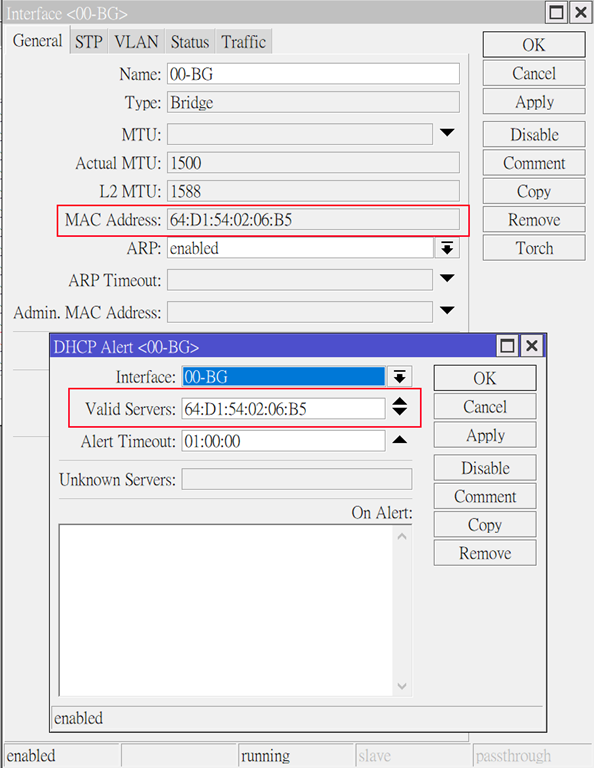
3. After the setting is completed, I start the DHCP server of another RB device, and we can see that alarm appears in red in the LOG.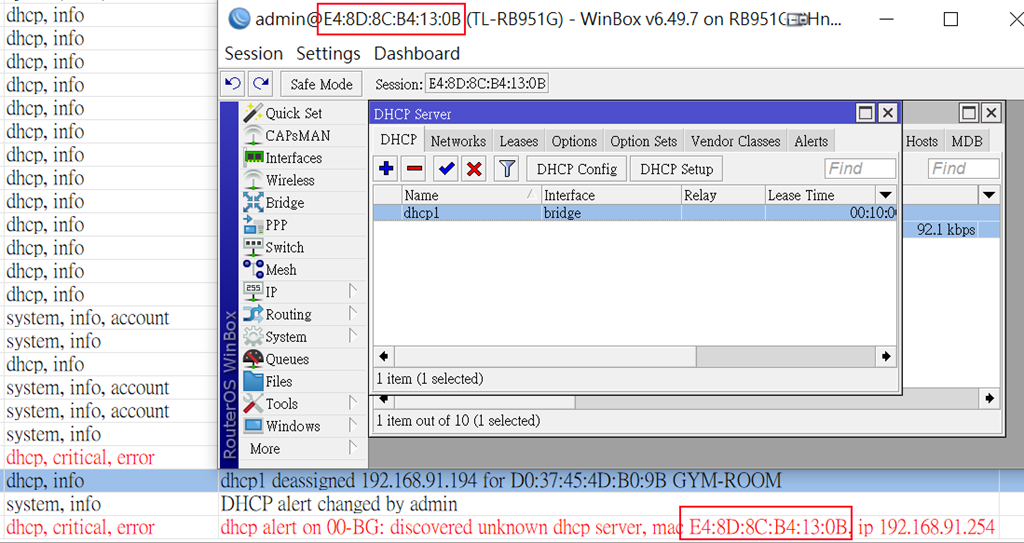
4. Now you got the MAC address, you can into Interface->Bridge->Hosts to check which ethernet port the Rough DHCP server, and then you can find out which user it is.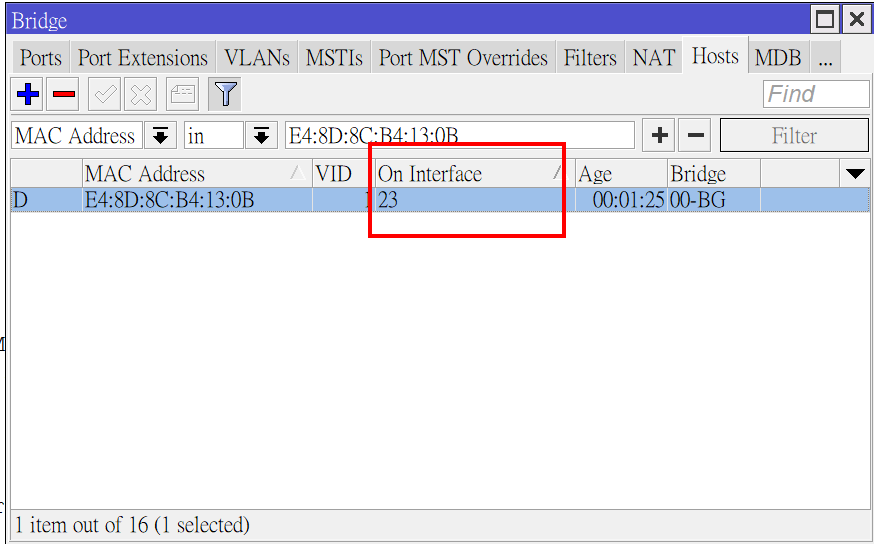
If you want a faster config, you can set it up faster with scripts:
# Add DHCP Alert
/ip dhcp-server alert
add disabled=no interface=00-BG valid-server=64:D1:54:02:06:B5
# Show log about "dhcp alert"
/log print where message~"dhcp alert"
# Show ARP List
/interface/bridge/host
pri where mac-address="E4:8D:8C:B4:13:0B"
If you think this article is helpful to you, you can support the author through Paypal 🙂